We always recommend buying from reputable manufacturers rather than no-name brands, especially for products with lithium-ion batteries, such as power banks, Bluetooth speakers, flashlights, power tools, e-bikes, and more. In a 2025 study, industrial scanning company Lumafield CT-scanned over 1,000 lithium-ion battery cells from ten different brands, including reputable manufacturers like Samsung and Panasonic, as well as low-cost and outright counterfeit brands sold through retailers like Temu. The results were troubling: nearly 8% of the low-cost and counterfeit batteries had dangerous manufacturing defects that significantly increase the risk of internal short-circuiting and battery overheating, potentially leading to fires. None of the name-brand batteries showed these defects. The few dollars you might save on a no-name battery aren’t worth the risk.
(Featured image by iStock.com/Pradit_Ph)
Social Media: A study found that nearly 8% of cheap lithium-ion batteries have dangerous manufacturing defects that can cause catastrophic failure—even fires—while name-brand cells had none. Stick with reputable brands.
Safari’s compact tab bar option, which saves vertical space by placing the address bar in the current tab, went missing in the initial releases of macOS 26 Tahoe and iPadOS 26. Only Apple knows why this helpful option disappeared (Liquid Glass?), but as of macOS 26.4 and iPadOS 26.4, it’s back! On the Mac, select it in Safari > Settings > Tabs; on the iPad, look in Settings > Apps > Safari.
(Featured image based on an original by iStock.com/czekma13)
Social Media: Those who have been missing Safari’s compact tab bar are in luck—it’s back as of macOS 26.4 and iPadOS 26.4. The compact tab bar is a welcome way to save vertical space for content.
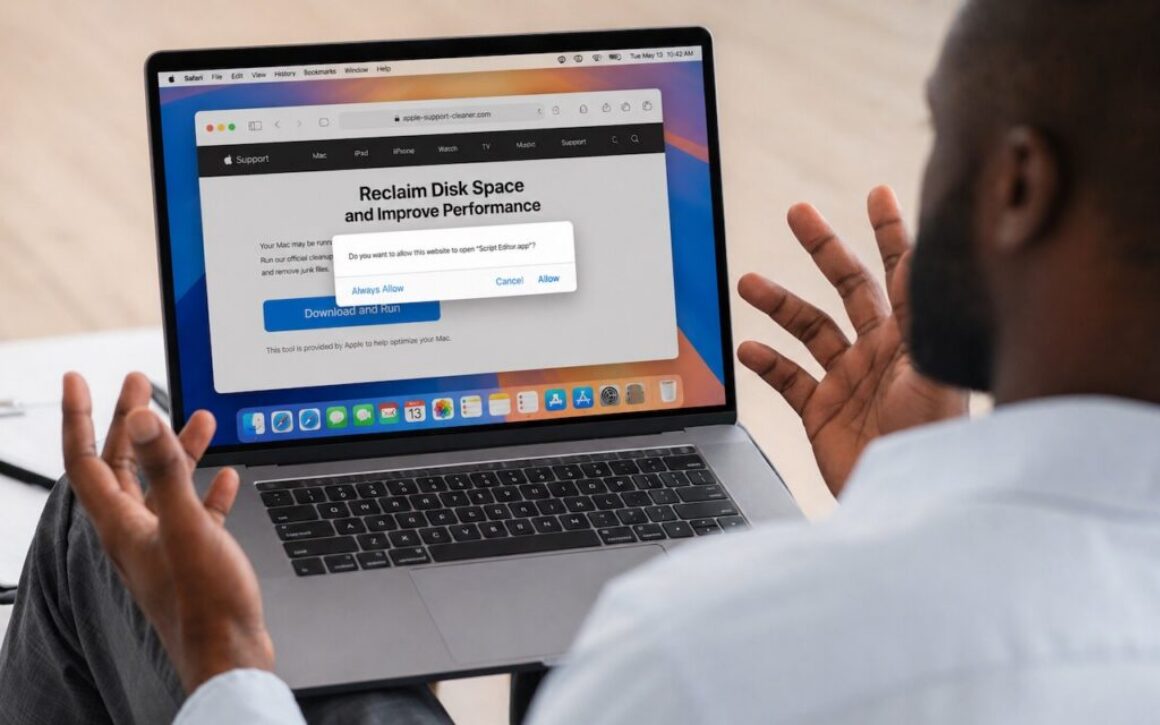
The latest scam to watch out for is fake websites that try to get you to open Script Editor directly from your browser with a pre-filled AppleScript. Don’t do this! Security researchers at Jamf Threat Labs documented an attack where a convincing Apple-themed page claiming to help “reclaim disk space” prompted users to allow Script Editor to open, then used the applescript:// URL scheme to open a seemingly legitimate script that—if the user ran it—would download and install the Atomic Stealer malware. In macOS 26.4, a new warning in Script Editor flags the script as from an unidentified developer, which should alert more users to the danger. (Yet another reason to install macOS updates!) The rule is simple: never run an AppleScript unless you wrote it yourself or acquired the code from a source you trust. If a website asks to open Script Editor—or any other app—click Cancel, and if you ever see this warning, close the script immediately. No legitimate webpage needs to run scripts on your Mac.
(Featured image based on an original by iStock.com/Prostock-Studio)
Social Media: Attackers are now using fake websites to open Script Editor with pre-filled malicious scripts. Never run an AppleScript from any source you don’t completely trust!
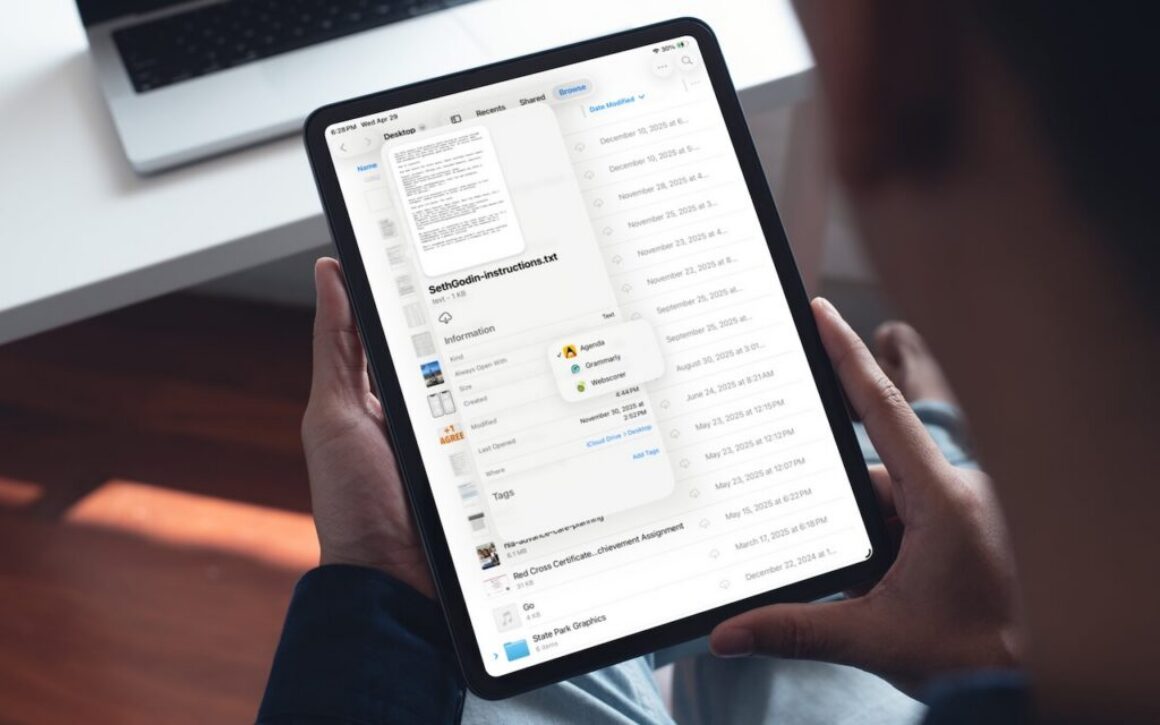
On the Mac, every file type opens in a particular app by default, but it’s easy to open a PDF, image, or text file in a different app. In the Finder’s Get Info window, you can also reset the default app so that, for example, JPEGs open in Photoshop or Affinity instead of Preview. That’s all now possible in iOS 26 and iPadOS 26 as well. In the Files app on an iPhone or iPad, touch and hold a file to bring up a menu. Tap Open With, then select an app to open the file once in a different app without changing the default. To reset the default app for that file type, tap Get Info, then select an app from the Always Open With list.
(Featured image based on an original by iStock.com/Tippapatt)
Social Media: iOS 26 and iPadOS 26 finally let you choose which app opens your files—just like on the Mac. Here’s how to use Open With and set new defaults in the Files app.
We recently helped a client set up an external boot drive on a Mac mini for testing, but the installation kept failing near the end with vague errors. We tried different cables, swapped drives, and more, to no avail. On a hunch, we moved the SSD to a different USB-C port, and the installation completed on the next attempt. But the port wasn’t bad—it was just the wrong port. Here’s what we mean.
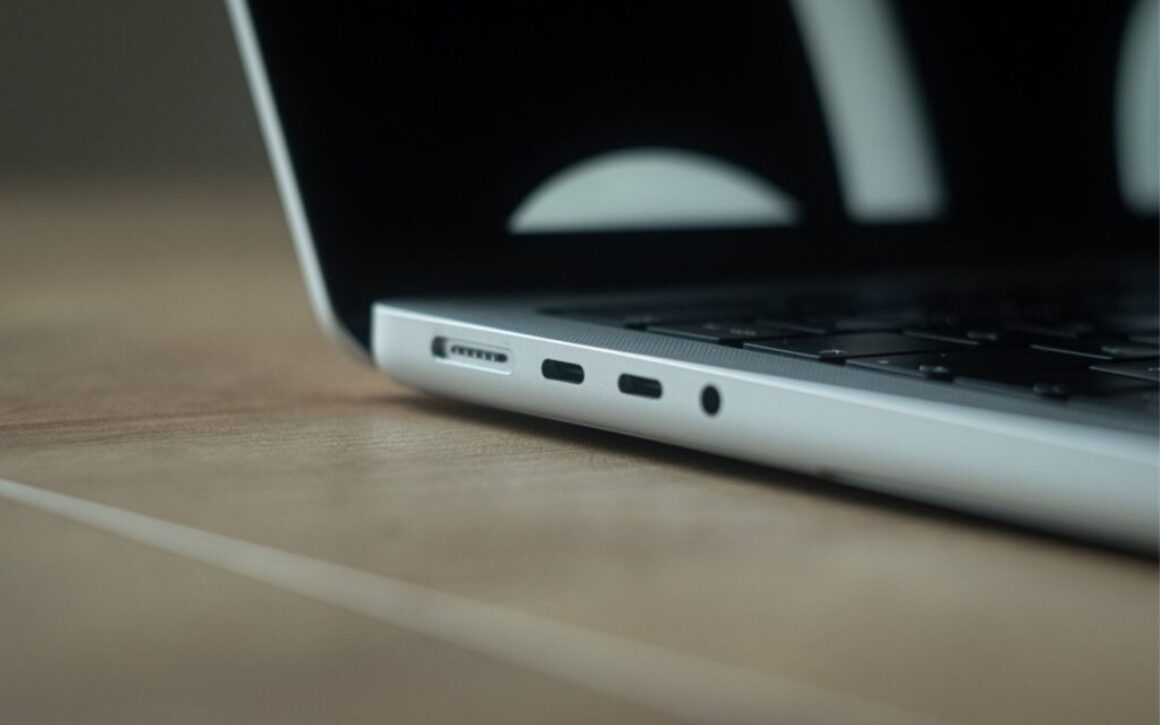
All the USB-C ports on a Mac look identical, but they don’t all behave the same way. On Macs with Apple silicon and Intel-based Macs with the T2 chip, Apple designates one port as the DFU (device firmware update) port. Most of the time, this distinction doesn’t matter—you can plug a device into any port, and it’ll work normally. But for certain tasks, using the wrong port can cause mysterious failures that waste hours of troubleshooting time.
Note that we say “USB-C” here, even though in most cases, these are Thunderbolt ports. However, Thunderbolt uses the USB-C connector, and Apple refers to the ports as USB-C ports, so we’re following Apple’s lead.
For most everyday tasks, the DFU port should work like any other USB-C port. However, Apple has documented one notable exception on Macs with Apple silicon: when installing or updating macOS on an external drive, avoid using the DFU port. If your external drive is connected to it during installation, the process may fail partway through, often without a useful error message and certainly without a clear “Connect your drive to a different port” message. You might see vague notifications like “Some updates could not be installed” or cryptic errors like “com.apple.OSInstallerSetup.error 702.” After installation or updating completes, you can connect your external drive to any port, including the DFU port.
We’ve also heard of situations where seemingly inexplicable problems, such as errors from an Apple SuperDrive attached to a Thunderbolt dock, were resolved by switching to a different port. It wasn’t always clear which port was responsible, but it’s always worth trying a different one if you have trouble.
Finding Your Mac’s DFU Port
How do you figure out which USB-C port is the DFU port? Apple maintains a support document describing the DFU port locations for each Mac model. The location varies by model and, within the same model, sometimes by generation. Apple does not explain why a particular port is designated as the DFU port or provide another way to identify it. All you can do is refer to Apple’s documentation.
Unfortunately, users have found errors on that page in the past, so if you’re experiencing unexplained installation failures or other errors, try a different port even if you believe you’re using the correct one.
DFU Port Takeaways
For everyday use—connecting displays, drives, docks, and other peripherals—you shouldn’t need to think about which port you’re using. The only time you must use the DFU port is when reviving or restoring a very unhappy Mac.
However, if you’re setting up an external boot drive or updating macOS on an external drive, take a moment to identify your Mac’s DFU port and plug your drive into a different one. And if a peripheral, even if it’s connected through a dock, behaves inexplicably, treat the port itself as a variable. Before troubleshooting cables, drives, or software, move the connection to another USB-C port. This simple step can save you from frustrating troubleshooting sessions where everything appears to work but ultimately fails.
(Featured image by iStock.com/Milosz Deptula)
Social Media: Your Mac’s USB-C ports look identical, but one is special—and using it can cause macOS installations or updates on external drives to fail, or trigger other errors with Thunderbolt docks. Learn which USB-C port isn’t like the others.
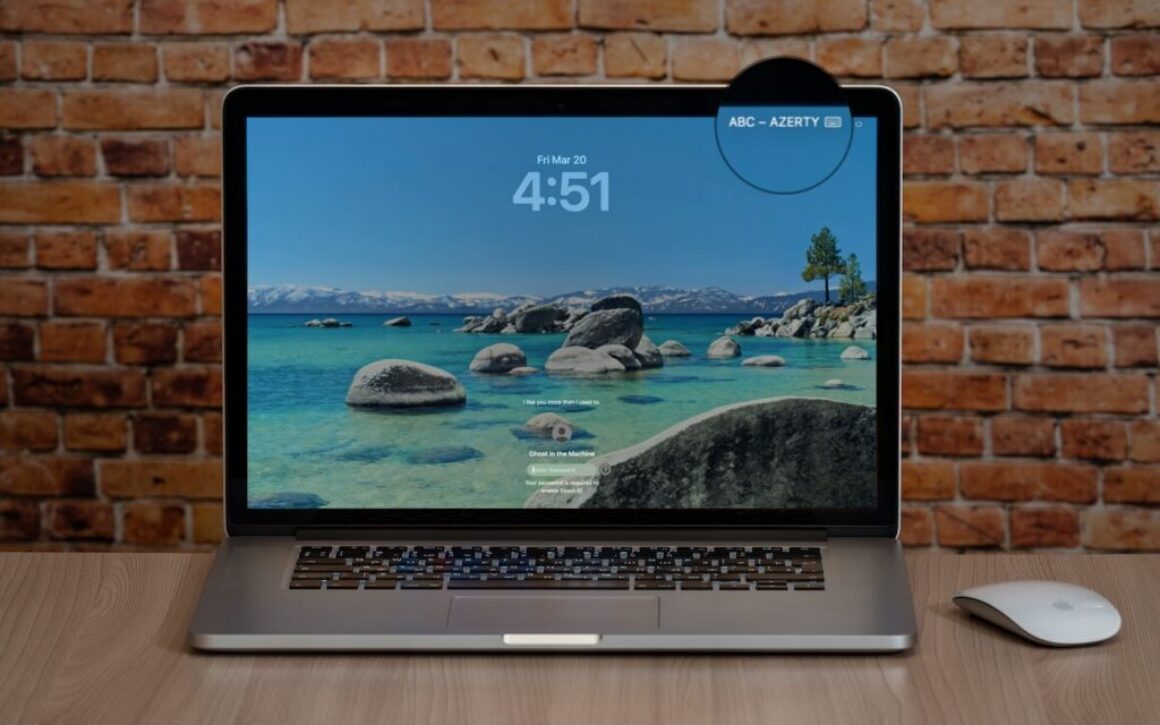
If your Mac starts typing unexpected characters—or rejects a password you know is correct—check to see if the Input Source menu appears in the upper-right corner of the screen, indicating that your Mac has more than one keyboard layout available for writing in other languages. Accidentally switching from the standard U.S. keyboard (or whatever you regularly use) to another layout—like the French ABC – AZERTY, which swaps the A and Q keys, among others—can cause keystrokes to produce different characters than expected. This key swapping is particularly confusing in password fields, where you can’t see what’s being typed. To fix it, click the Input Source menu and choose your default. To prevent this problem from recurring, go to System Settings > Keyboard, click Edit next to Input Sources, and delete any keyboard layouts you don’t use. You can also change what the Globe key does in System Settings > Keyboard—you can prevent accidental layout changes by switching it from Change Input Source to Show Emoji & Symbols, Start Dictation, or Do Nothing.
Estonia, Tallinn, July 11, 2020. Apple Macbook pro 15 Retina on table
(Featured image based on an original by iStock.com/Armastas)
Social Media: Is your Mac typing the wrong characters or rejecting your password? You may have accidentally switched keyboard layouts. Here’s how to check your input source and prevent it from happening again.