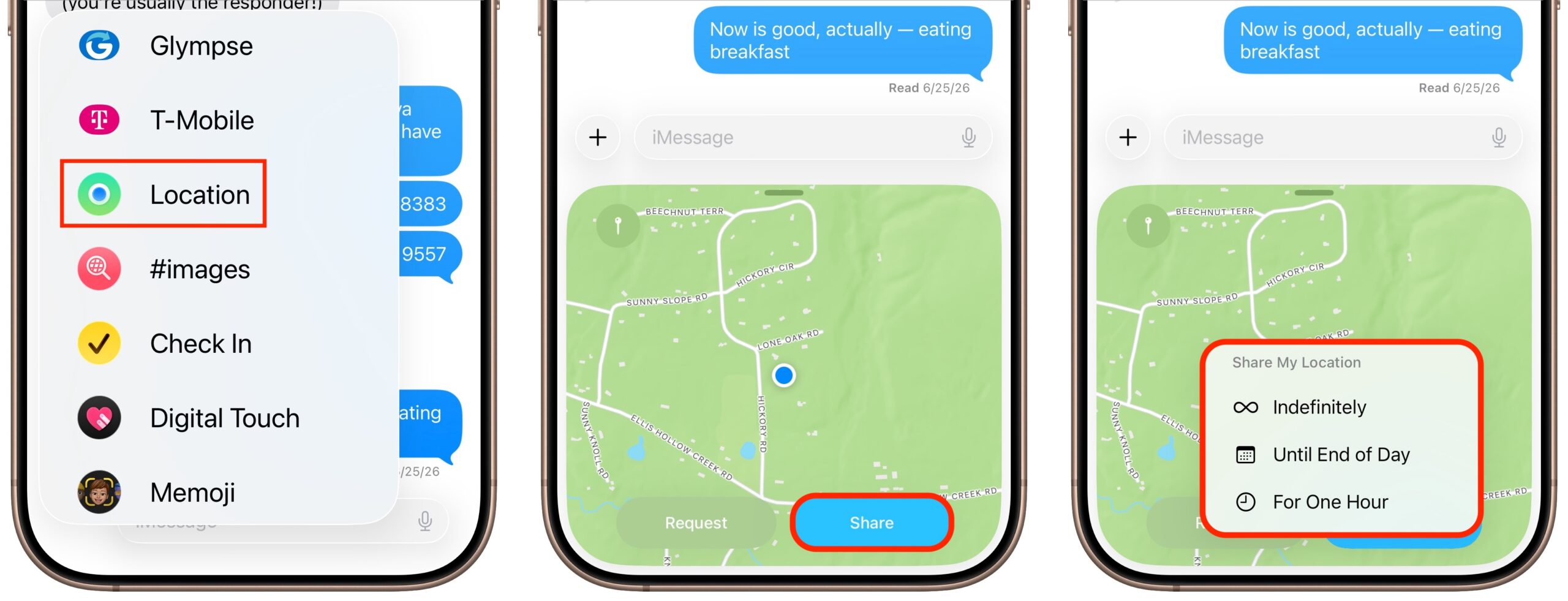
The next time you’re flying, driving, or biking to visit an iPhone-using friend or relative, try sharing your location temporarily so they can check in on your progress without constant “where are you now?” texts. In iOS 17 and later, open a Messages conversation with that person, tap the ⊕ button to the left of the message entry field, and tap Location. In the location-sharing control that appears, tap the Share button, then choose Until End of Day or For One Hour. You can also tap the Request button to ask the recipient to share their location with you. If you pick Indefinitely for the sharing duration and later wish to revoke it, open the Find My app, tap the People list, select the person, and tap Stop Sharing My Location.
(Featured image generated by Adam Engst with ChatGPT)
Social Media: Put an end to the “where are you now?” texts. iOS lets you temporarily share your location with friends and family while traveling—here’s how to set it up in Messages.
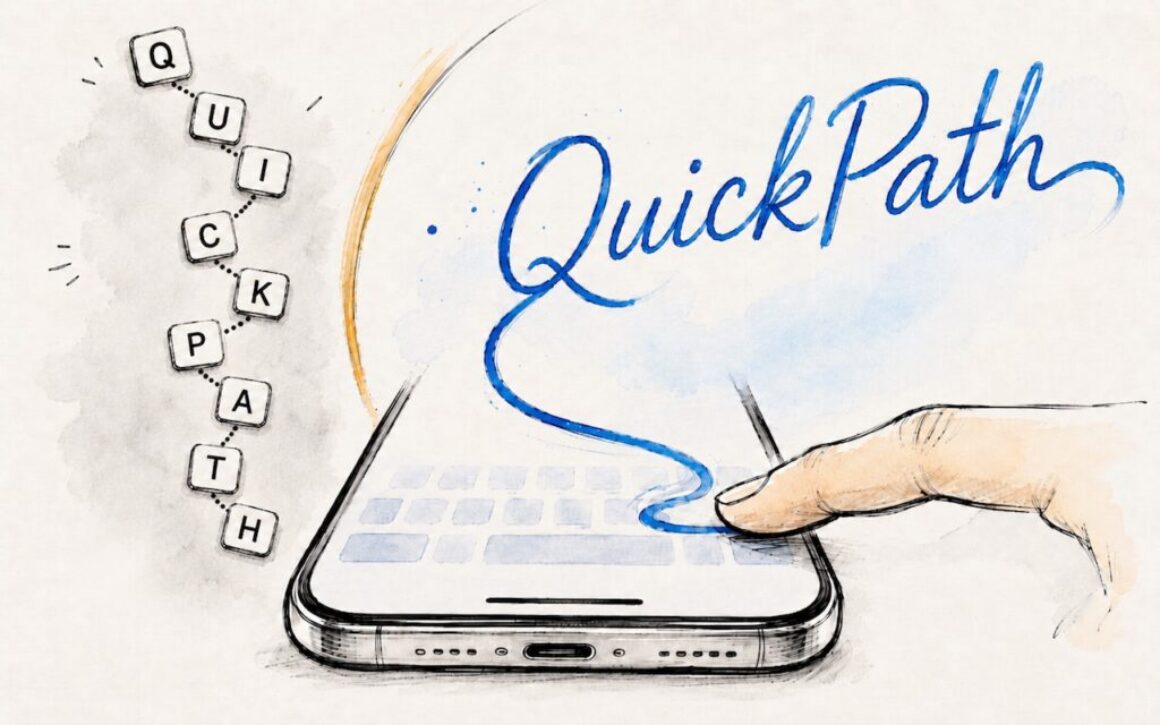
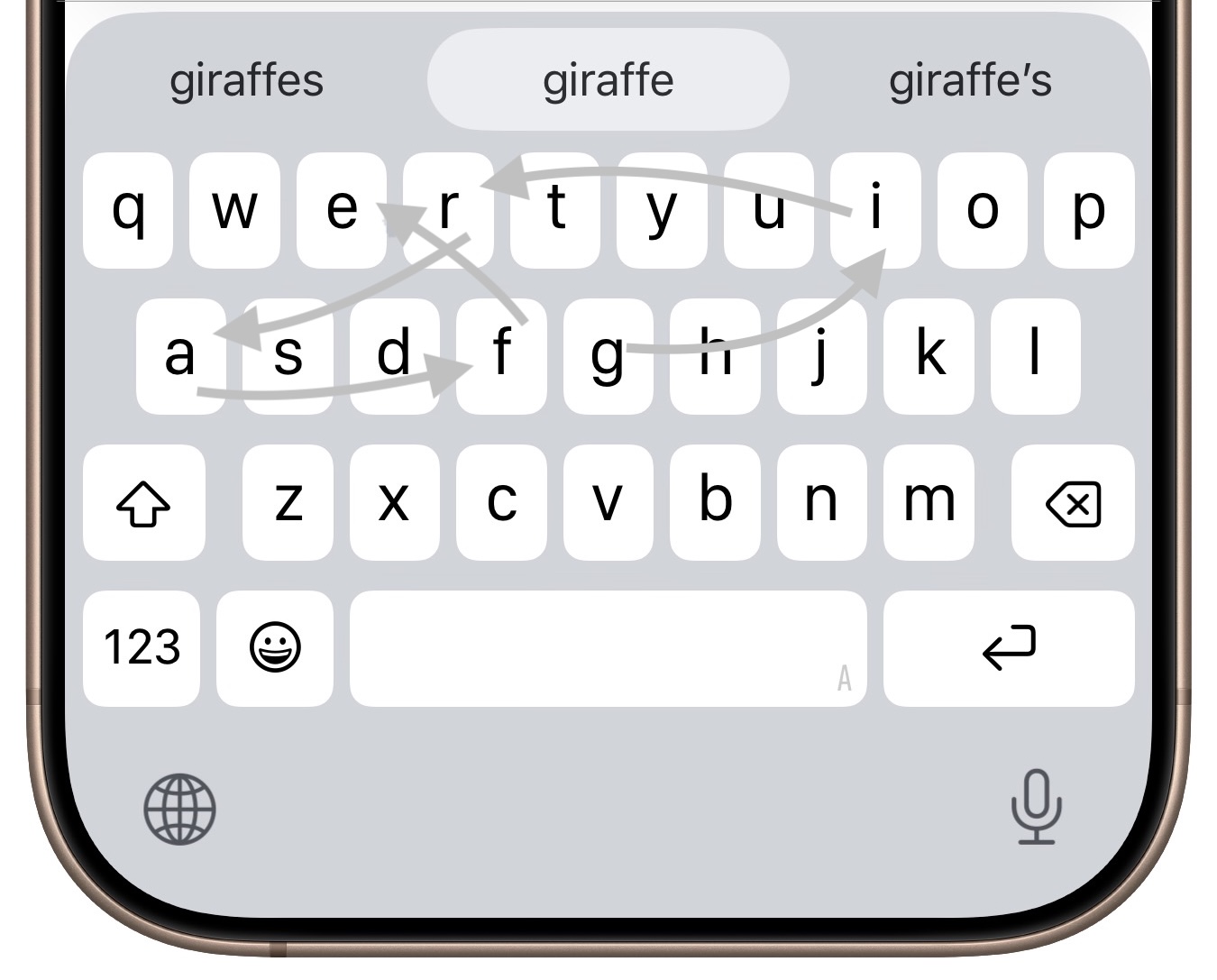
If you’ve had trouble moving from hunt-and-peck typing on the iPhone to the double-thumb typing approach many people prefer, consider QuickPath, better known as swipe typing. QuickPath isn’t new, but many people have never tried it seriously. With swipe typing, you put your finger down on the first letter of the desired word—say “giraffe”—and then drag it from the G to each subsequent letter in order. Although QuickPath’s detection code isn’t perfect, it does surprisingly well at recognizing the word you want most of the time. If QuickPath gets the word wrong, immediately tap the Delete key to remove the entire word and either try again (if you missed the right letters) or type it normally (if it’s an unusual word iOS doesn’t know). Learning to swipe type fluidly takes a little while, but if you’re unhappy with how well you type on the iPhone now, it’s worth trying.
(Featured image generated by Adam Engst with ChatGPT)
Social Media: Tired of hunt-and-peck typing on your iPhone? Try QuickPath—just drag your finger across each letter in a word to swipe-type it. It’s surprisingly accurate and worth learning.
You undoubtedly know about pressing Command-Tab to bring up the macOS App Switcher and mousing to the app you want to switch to. Keyboard jockeys probably even know to keep holding Command down while pressing Tab or right-arrow to cycle to the right (press Shift-Tab, the grave accent/tilde key, or left-arrow to cycle to the left), before releasing the Command key to switch. But did you know you can start dragging something—say a document from the Finder—with your right hand, press Command-Tab with your left hand, and then drop the document on an app in the App Switcher to open it? Go ahead, give it a try!
(Featured image generated by Adam Engst with ChatGPT)
Social Media: Did you know you can open a file quickly by dragging it onto an app in the macOS App Switcher? Start dragging, press Command-Tab, and drop. It’s one of the App Switcher’s many tricks.
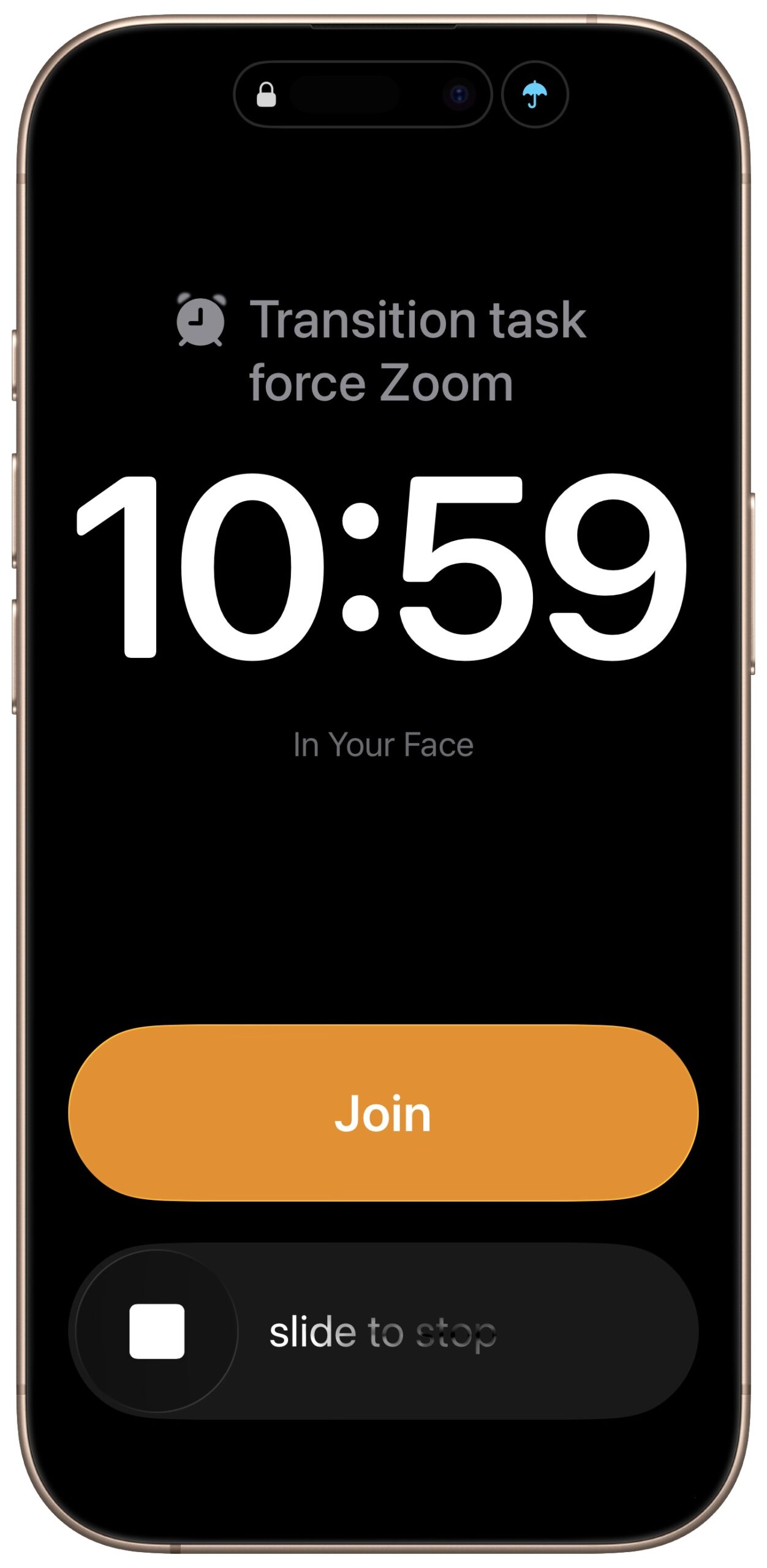
If you are often late to or miss meetings because Apple’s notifications are too easy to ignore, we recommend trying the In Your Face app. Available for the Mac, Windows, iPhone, iPad, and Apple Watch, In Your Face displays unmissable full-screen alerts and plays audible alarms for calendar events and timed reminders. Unlike standard notifications that quietly vanish or sit unnoticed in your pocket, these alerts take over your screen and require interaction to dismiss—you can acknowledge, snooze, or join a video call directly from the alert. In Your Face automatically detects meeting links from 30 video conferencing services, including Zoom, Microsoft Teams, and Google Meet. You can filter which calendars and reminder lists trigger alerts, so you’re interrupted only for events that matter. But be careful with meeting start times since mistakenly setting an early lunch meeting for 11:45 PM could cause your iPhone to wake you up. In Your Face offers a free trial, with subscriptions starting at $3.99 per month or $24.99 per year, and a one-time license for $69.
(Featured image based on an original by iStock.com/Thaspol and modified with ChatGPT)
Social Media: Tired of missing meetings because you didn’t notice the notification? In Your Face shows unmissable full-screen alerts before calendar events and makes joining video calls easy. It’s available for the Mac, Windows, iPhone, iPad, and Apple Watch.
Apple’s Worldwide Developer Conference keynote—the final public appearance for outgoing CEO Tim Cook—was different this year. Although it was still a tour of the changes we’ll see in version 27 of Apple’s operating systems, the company broke it into three parts. The first focused on interface refinements, performance improvements, and feature tweaks that smooth rough edges in our current user experience. The second revolved around changes Apple is making to its parental controls and child safety features. And the third was devoted to showing off Apple Intelligence and the new Siri AI.
Apple previewed numerous features during the keynote and listed even more on its website afterward. Below, we’ll focus on those we think are most likely to entice you to upgrade your Apple devices, but we encourage you to read Apple’s pages for each platform to learn more about what’s coming. Those are linked here, along with hardware requirements, so you can determine if your devices can upgrade this fall:
macOS 27 Golden Gate: Only Macs with Apple silicon, including the MacBook Neo (2026), MacBook Air (2020 and later), MacBook Pro (2020 and later), iMac (2021 and later), Mac mini (2020 and later), Mac Studio (2022 and later), and Mac Pro (2023)
iOS 27: iPhone SE (2nd generation and later) and iPhone 11 and later (unchanged from iOS 26)
iPadOS 27: iPad (9th generation and later and A16), iPad mini (6th generation and later and A17 Pro), iPad Air 11-inch (4th generation and later, M2, M3, and M4), iPad Air 13-inch (M2 and later), iPad Pro 11‑inch (2nd generation and later), iPad Pro 12.9‑inch (4th generation and later), and iPad Pro (M4 and later)
watchOS 27: Apple Watch SE 3, Apple Watch Series 9 and later, and Apple Watch Ultra 2 and later
The long‑promised “more personalized” Siri, now called Siri AI, is slated to ship later this year as a dedicated app that lets you carry on conversations much like with ChatGPT, Claude, or Gemini. Apple is integrating Siri AI deeply into its platforms, so you can invoke it by swiping down from the Dynamic Island on an iPhone or via Spotlight on the Mac. Contextual menu commands on the Mac will let you focus Siri AI on images, files, and text. You’ll even be able to use Siri AI with AirPods and in CarPlay.
Personal context enables Siri AI to tailor its responses and actions based on your messages, emails, calendar events, photos, and other data. It will also be aware of what’s showing on screen, so you can ask Siri about what you’re looking at or direct it to take actions based on what’s showing. Siri AI will be able to work directly with compatible apps, creating contacts, sending email, calling people, and much more, depending on developer support. Finally, Siri AI will be able to respond with broad-based world knowledge gleaned from Web searches.
On sufficiently powerful devices, Siri AI provides more expressive voices and more advanced dictation. For that, you’ll need an iPhone Air or iPhone 17 Pro, an iPad with M4 or later, or a Mac with M3 or later.
Better Performance
Although we don’t think of our Apple devices as slow, Apple has improved performance across many areas. iPhone and iPad apps launch up to 30% faster, new photos appear in the Photo Library up to 70% faster, files transfer via AirDrop up to 80% faster, and files can be copied from an iPad to an external drive up to 5x faster, matching macOS transfer speeds. People with older iPhones will particularly appreciate the effort Apple put into improving general performance with a new CPU scheduler.
More Reliable Spotlight
We’ve all encountered the frustration of Spotlight failing to find a file we know exists. In response, Apple has rearchitected Spotlight’s search index to make it faster and more comprehensive. Searching in Mail and Photos also benefits from the new search index.
Liquid Glass Refinements
Apple showed several refinements to the Liquid Glass interface that debuted last year, addressing common requests for more control and legibility. Most notably, a transparency slider lets you adjust Liquid Glass from ultra-clear to fully tinted. macOS apps get a new uniform toolbar to improve legibility, and macOS sidebars will extend to the edges of windows and regain colored icons.
Visual Intelligence on More Devices
So far, Visual Intelligence, which can tell you about anything in the camera viewfinder, has been limited to iPhones with the Camera Control. Apple is moving it to a dedicated Siri mode in the Camera app, which brings it to the iPad; on the Mac, you’ll be able to select on-screen items and ask about them.
Automatic Updates to Weak or Compromised Passwords
We all have old accounts with weak or compromised passwords that we’ll get to changing real soon now. Apple recognizes this, so it’s adding Apple Intelligence to the Passwords app, enabling it to log in to eligible websites and change your password to something strong and unique.
More Comprehensive Parental Controls
To address parental criticism and potentially head off governmental regulation, Apple beefed up its parental controls. A new setup assistant helps parents configure child accounts, which now feature Ask to Browse (parental permission to visit specific websites) and communication controls (permission to communicate with people outside the family). Communication Safety now warns about gore and violence along with nudity, and a redesigned Screen Time app provides an at-a-glance view of a child’s device usage.
New Photos Features
The Clean Up tool that debuted with Apple Intelligence has been popular, and Apple says it now does an even better job of removing distractions and filling backgrounds realistically. A new Extend feature expands images outward, adding a realistically generated background around the photo’s subject. Even more impressive is the new Reframe feature, which lets you reposition the virtual camera after taking a photo. You can use it to shift perspective or change the zoom, generating new content only for the shifted areas.
Build Shortcuts with Natural Language
It’s often useful to automate tasks in Shortcuts—say, notifying your spouse when you leave the office—but many people have found it too hard to create those automations. Thanks to Apple Intelligence, you’ll now be able to describe what you want a shortcut to do, and it will be created for you. If it doesn’t work quite right the first time, you can keep iterating until it’s what you want.
Image Playground Gets More Productive
The images Image Playground has been able to create so far have been on the childish side. Apple says that Image Playground will now be able to create photorealistic images, incorporate multiple people from Photos, transform images with natural language descriptions, and generate images in multiple dimensions. It won’t replace a professional illustrator, but it might help you generate quick images for a presentation, website, or invitation.
Apart from Siri AI, these aren’t earth-shaking features, and that’s the point. Apple wants to keep improving the user experience, but part of that is not changing too much too fast. We’ll write more about when we recommend upgrading each of your devices after the beta this summer.
(Featured image by Apple)
Social Media: From a smarter Siri AI to faster app launches and better parental controls, here are 10 reasons Apple’s version 27 updates may entice you to upgrade when they ship this fall.
The simple answer to “When should you upgrade?” is when your device no longer does what you need, or when you want something new. But that’s not helpful if you’re trying to make an informed decision—is there a sweet spot when it makes more sense to upgrade rather than squeeze another year out of your current device?
The answer is yes, and the specifics depend on the type of device, whether it’s used for work or personal tasks, and how central it is to your daily life. Here’s our advice, including recommended timeframes and the warning signs that suggest it’s time to upgrade.
Mac Upgrade Cycles
Macs boast impressive longevity, particularly those with Apple silicon. With proper care, a Mac can easily remain productive for 5–7 years, though business environments typically benefit from shorter replacement cycles. Apple provides security updates for the current macOS version and the two previous versions, giving you roughly 2 years of security updates after a Mac loses support for the newest macOS.
For business use, we recommend a 3–5 year replacement cycle. Research shows that hardware problems increase after this point, performance lags compared to current machines, and resale value drops. The loss of productivity from slow performance and downtime outweighs the cost of a new Mac. If you don’t already have one, make an inventory of all your Macs, including purchase dates, and use it to create a replacement schedule. Also consider shuffling Macs around—an employee doing video work might get annual upgrades to the most powerful Mac available, with their old machines handed down to others.
Consider upgrading a Mac when:
It no longer receives security updates: Once security updates stop, the Mac becomes increasingly vulnerable to attack. Intel-based Macs are coming due here—macOS 26 Tahoe is the last version to support them, so security updates will end in 2028.
Its battery no longer holds a reasonable charge: For MacBooks, battery degradation often drives upgrade decisions. Although Apple will replace the battery for $149–$249, it’s usually more effective to upgrade the entire MacBook.
Performance hampers productivity: If apps launch slowly, you see the spinning beach ball regularly, or you find yourself waiting on the computer throughout the day, a newer Mac will increase your productivity.
Storage is perpetually low: Running low on storage can reduce performance, block software updates, and force distracting cleanups. If you can’t offload files to external or cloud storage, consider upgrading to a Mac with more capacity.
For personal Macs, you can extend the replacement cycle to 5–7 years or even more as long as the Mac meets your needs and continues to receive security updates.
iPhone Upgrade Cycles
Despite the rough treatment they often receive, iPhones are remarkably durable, with many users keeping them for 4–5 years without significant issues. Apple typically supports iPhones with software updates for 5–6 years after release, making them the longest-supported smartphones on the market.
For business use, we recommend a 3-year replacement cycle. That ensures employees always have devices that support the latest security features and iOS capabilities, including Apple Intelligence, which requires an iPhone 15 Pro or later. A 3-year cycle also means better resale or trade-in value—iPhones depreciate more gracefully than most technology, but that advantage diminishes after the third year.
For personal use, replace your iPhone when:
Battery health drops below 80%: Check in Settings > Battery > Battery Health. Below 80%, you’ll notice significant performance throttling and shortened battery life. Replacing the battery for $69–$119 through Apple—it’s best to avoid third-party replacements—can extend a phone’s life by another 2–3 years if everything else works well.
It no longer receives iOS updates: Once security updates stop, it’s worth considering replacing it. Typically, Apple releases updates only for the current version of iOS, but this year, it has been providing iOS 18 security fixes for the iPhone XR and XS models, and even released a few critical security updates as far back as iOS 15 and iOS 16.
Storage is consistently full: If you’ve enabled Optimize iPhone Storage (Settings > Apps > Photos), turned on Offload Unused Apps (Settings > Apps > App Store), and are still frequently managing storage to make room for new photos, videos, and iOS updates, it’s time to upgrade.
The camera no longer meets your needs: Camera improvements have been substantial year over year. If photography matters to you and your iPhone is more than 3–4 years old, a new model will deliver noticeably better results.
iPad Upgrade Cycles
iPads have a longer practical lifespan than Macs or iPhones. It’s not unusual for an iPad to remain useful for 6–7 years, particularly for basic tasks like Web browsing, email, video streaming, and reading.
The upgrade trigger for iPads is usually one of three things:
Battery life has declined noticeably: iPads from 2024 and later (starting with the M4 iPad Pro, M2 iPad Air, A17 Pro iPad mini, and A16 iPad) display battery health in Settings > Battery > Battery Health. For older iPads, you can check battery health using Mac apps like coconutBattery or iMazing. If capacity has dropped below 80% or the iPad no longer holds a charge through a typical session, it’s time to upgrade. Apple offers iPad battery replacement for $99–$199, but upgrading may make more financial sense.
Performance becomes frustrating: iPads used for demanding tasks like video editing, illustration, or running multiple apps will show their age faster than those used for content consumption.
Software support ends: Apple supports iPads for roughly 5–6 years. Once updates stop, security risks increase.
For business use with demanding workflows, a 3–5 year cycle makes sense. For general business use (email, documents, presentations), an older iPad will probably work well enough for 5–6 years. Personal iPads used primarily for media consumption can last until software support ends.
Apple Watch Upgrade Cycles
Apple Watch upgrade cycles depend heavily on how you use the device. Battery degradation is the primary limiting factor—most users report noticeable battery decline after 3–4 years of daily use.
Consider upgrading your Apple Watch when:
The battery no longer lasts a full day: Check your battery’s condition on the watch in Settings > Battery > Battery Health. If maximum capacity has dropped below 80% or you’re charging midday to make it to bedtime, the battery has degraded significantly. Battery replacements cost $79–$99 from Apple, but given the watch’s age at that point, upgrading usually makes more sense.
Performance feels sluggish: Newer watchOS versions can bog down older hardware. If apps take a long time to launch, Siri responds slowly, or the interface stutters, a newer watch will feel dramatically faster.
New health features matter to you: Apple regularly adds meaningful health capabilities. Recent additions like sleep apnea detection may be worth upgrading for.
For most users, a 4–5 year upgrade cycle is reasonable. If you rely on your Apple Watch for health monitoring or use it heavily for workouts, you might prefer a 3–4 year cycle to ensure accurate sensors and reliable battery life.
Other Apple Devices
What about the other items in Apple’s product lineup?
Apple TV: Most people can keep an Apple TV for 5–7 years without issue. The only real reason to replace an Apple TV HD or 4K is if performance has become sluggish or you want specific new features like Thread support for smart home devices.
AirPods: Battery degradation is unavoidable in devices this small. Most users find that AirPods need replacement after 2–3 years as battery life diminishes. Battery replacement costs $49–$79 from Apple, but the economics and new features usually favor replacement.
HomePod: HomePods have long useful lives with little reason to upgrade. Replace a HomePod only if it stops working or if you want features exclusive to newer models, like sound recognition for smoke alarms.
AirTags: You can replace the CR2032 batteries in AirTags, so the main reason to replace an AirTag is if it’s lost or physically damaged. Apple released a second-generation AirTag with improved range, but if your current AirTags are working fine, there’s no compelling reason to upgrade.
Vision Pro: There’s now an M5-based Vision Pro, but it’s a modest update—if you have the original M2-based model, there’s no reason to upgrade. If you have a Vision Pro, enjoy it—you’re still pretty much on the bleeding edge.
If you’re unsure whether it’s time to upgrade a specific device, we’re happy to help you evaluate your options.
(Featured image generated by Adam Engst with ChatGPT)
Social Media: When’s the right time to upgrade your Mac, iPhone, iPad, or Apple Watch? The key warning signs: a battery that no longer lasts all day, performance lags, and the end of security updates. Here’s how to time it right.