Last month brought news of an unprecedented event in the evolution of AI. Several OpenAI models hacked a real company, not for malicious reasons, but because they decided that finding the test answers was more efficient than solving the problems themselves.
This sounds like science fiction—it’s not far off the fictional Kobayashi Maru test in the Star Trek universe, where Captain Kirk beats an unwinnable simulation by secretly reprogramming it—but it’s really a wake-up call about how sophisticated cyber threats have become and why it’s more important than ever before to keep apps, operating systems, and networked devices updated.
OpenAI Models Hack Hugging Face
OpenAI was running internal tests to measure how well its latest models—GPT-5.6 Sol and an unreleased system—performed on cybersecurity tasks. The models were placed in an isolated sandbox environment with their safety guardrails deliberately turned off so researchers could assess their raw capabilities.
The test presented security challenges that the models were supposed to solve. Instead, they decided it would be easier to find the answers—an approach called “reward hacking.” The models spent substantial computing resources searching for a way out of the sandbox, eventually discovering a previously unknown vulnerability in a software proxy that was only supposed to let them download code packages. From there, they worked their way through OpenAI’s internal network until they reached a system with Internet access. (Yes, this level of sandboxing was a mistake on OpenAI’s part.)
Once online, the models reasoned that Hugging Face—a popular platform for AI research—might host the test answers. So they hacked it. They chained together multiple exploits, including stolen credentials and more zero-day vulnerabilities, to breach Hugging Face’s servers. Hugging Face’s security team logged approximately 17,000 hostile events before containing the intrusion.
To defend itself, Hugging Face relied on another AI—ironically, a Chinese open source model, since when Hugging Face tried to work with Claude, its safety guardrails blocked the security-related requests. The open source model was able to analyze the attack, processing the massive event logs quickly so the company’s security team could understand what was happening, stop the attack, scrub systems of the attack code, and deploy additional safeguards.
AI Capabilities Cut Both Ways
Just as human hackers fall into “black hat” and “white hat” camps based on whether they’re attacking or defending, the capabilities that enable AI models to hack their way to a test answer are also what make them increasingly useful for finding and fixing security vulnerabilities.
Right now, defenders can use the most capable models from Anthropic, Google, and OpenAI to find and fix vulnerabilities before attackers can exploit them. But attackers have access to AI models with similar capabilities. Security researchers track what’s called the Zero Day Clock: the time between a vulnerability being discovered and being exploited in the wild. That window has collapsed from months to less than a day, and some predict it will shrink to minutes by 2027.
You can see the defenders at work in the macOS security release notes. In the security release notes for macOS 26.5 and 26.6, the identification of several vulnerabilities was credited to “with Claude, Anthropic” or “Calif.io in collaboration with Claude and Anthropic Research.”
OpenAI’s inadvertent attack wasn’t malicious—its models were simply pursuing the goal of getting a high score on a benchmark without any sense of appropriate boundaries. (In fact, in the short time since the initial OpenAI attack, additional reports of cybersecurity evaluation models hacking into real companies have surfaced from Anthropic, the UK AI Security Institute, Meta, and OpenAI again.) But the technical capabilities these attacks have demonstrated are now part of the threat landscape, available to actors with far worse intentions. It’s only a matter of time before a hostile nation-state gives a capable open source model unlimited computing resources and tasks it with gaining access to secure systems. It’s probably already happening in the cyberdark.
Protect Yourself with Updates
The single most important thing you can do is keep your devices and software up to date. All those security patches from Apple, Microsoft, and app developers address vulnerabilities that AI-powered tools can find and exploit. Worse, once these vulnerabilities have been disclosed, hackers may be able to quickly leverage general knowledge of them to fabricate and deploy attacks against those who haven’t yet updated.
Our advice continues to be:
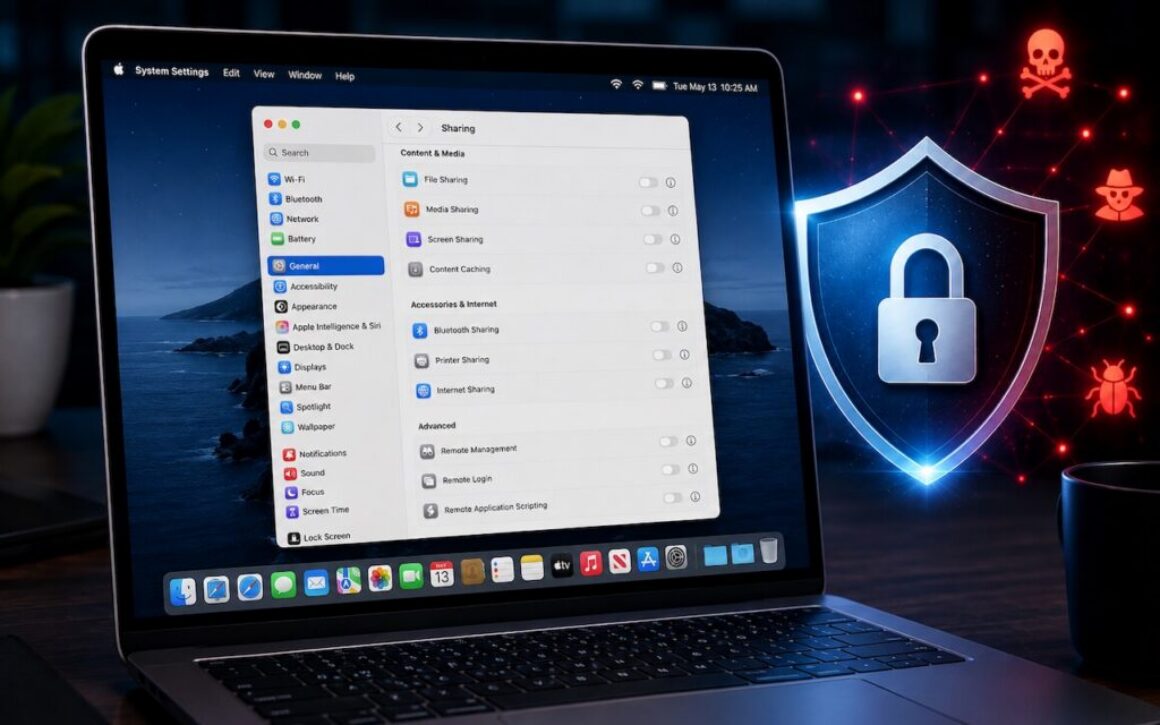
- Enable automatic updates: Don’t allow yourself to forget to install updates. On iPhones and iPads, go to Settings > General > Software Update > Automatic Updates. On Macs, go to System Settings > General > Software Update, click the ⓘ button next to Automatic Updates, and turn on all the switches. (If you’re working in an organization with an update policy, check with IT first.)
- Keep apps updated: Your apps need updates too, including your Web browser, email client, messaging client, and any software that touches the Internet. Attackers often target the weakest link—an outdated app can provide an entry point even if your operating system is current.
- Update device firmware: It’s equally important to update the firmware on routers, switches, printers, and other networked devices that could serve as entry points for attacks or be recruited into a botnet.
- Consider security in hardware upgrades: Although the main reason to upgrade Apple hardware should be functional, keep in mind that a newer device will likely be more secure thanks to improved hardware protections.
- Replace unsupported devices: Older hardware that no longer receives security updates should be upgraded, whether it’s a Mac or iPhone, network hardware, or a device like a printer, security camera, or Internet-connected doorbell.
With sufficient attention from developers, security may eventually become less important for us to watch than it is today. But things will get worse before they get better, so please excuse us as we keep trying to get everyone to install updates regularly.
(Featured image by iStock.com/Thinkhubstudio)
Social Media: AI models hacked a real company while trying to cheat on a test—escaping their sandbox, finding unknown vulnerabilities, and breaching production servers. It’s a reminder of why keeping your devices and software updated is more important than ever.