Apple’s annual September event delivered more than the usual annual iPhone and Apple Watch updates. Alongside the iPhone 18 Pro and iPhone 18 Pro Max, new Apple CEO John Ternus led the unveiling of the iPhone Duo—Apple’s first foldable iPhone—the Apple Watch Series 12 and Ultra 4 with new health-sensing and listening capabilities, and the AirPods 5 with Active Noise Cancellation available in both models.
After the event, Apple confirmed that iOS 27, watchOS 27, macOS 27 Golden Gate, iPadOS 27, tvOS 27, and visionOS 27 will ship on September 14. As always, we recommend waiting a week or two before upgrading essential devices and holding off on Golden Gate for a few months until you’re confident your necessary Mac apps are compatible. Always make a backup before upgrading.
Let’s examine the new products.
iPhone 18 Pro and iPhone 18 Pro Max
The iPhone 18 Pro and iPhone 18 Pro Max boast improvements to the camera system, performance, and battery life. Apple did not announce a plain iPhone 18—rumors suggest it will arrive in early 2027.
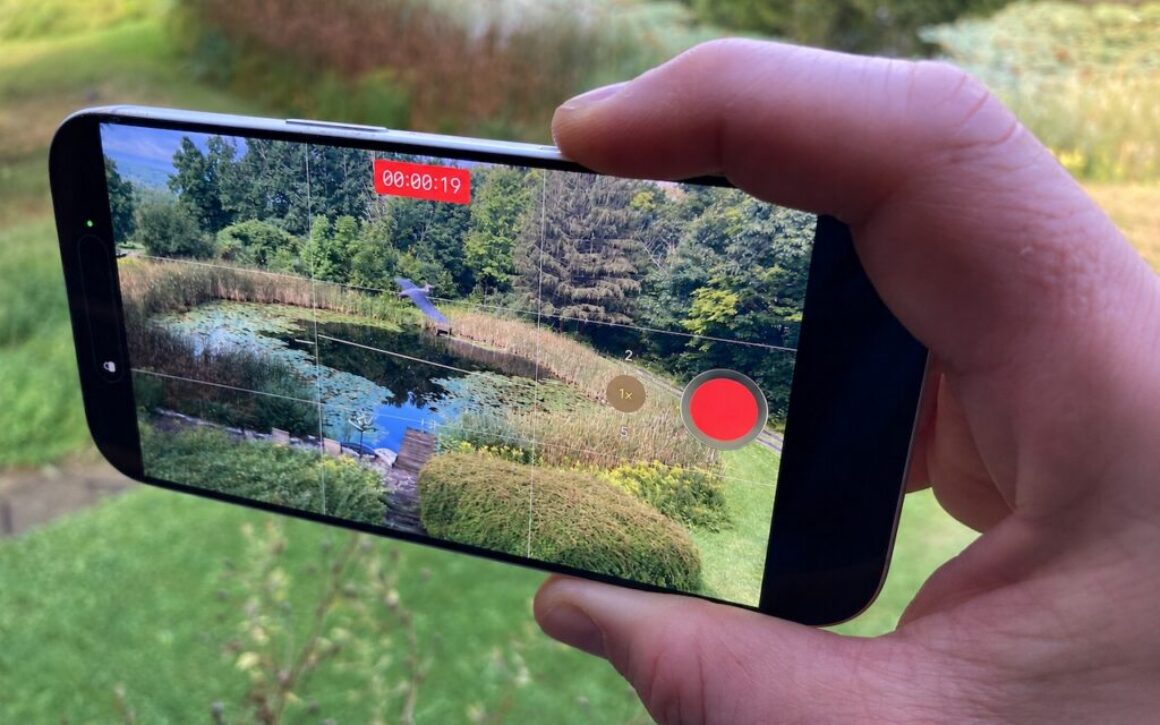
The headline feature is the new 48-megapixel Fusion Main camera with a variable aperture. For the first time on the iPhone, the camera offers four aperture settings: ƒ/1.48, ƒ/1.8, ƒ/2.8, and ƒ/4.0. The Camera app automatically adjusts the aperture based on lighting conditions, but photographers can also take manual control through new Pro controls. The wider ƒ/1.48 maximum aperture should improve low-light performance and provide shallower depth of field for better bokeh. The Ultra Wide and Telephoto cameras remain unchanged from the iPhone 17 Pro.
Performance should be noticeably better. The A20 Pro chip delivers up to 20% faster CPU performance and 40% faster GPU performance compared to last year’s A19 Pro. The chip also features a Dual 16-core Neural Engine with double the AI processing power.
Apple redesigned the Dynamic Island—where the Face ID sensor lives—to be smaller while displaying more information, now showing up to three Live Activities simultaneously.
Battery life is also better. In Apple’s new “typical use” battery metric, the iPhone 18 Pro offers up to 24 hours, while the Pro Max delivers up to 30 hours. Fast charging has improved as well—the iPhone 18 Pro can add 50% in just 15 minutes with a 60W or higher adapter.

The iPhone 18 Pro starts at $1,199 and the Pro Max at $1,299—$100 increases over last year’s models due to the ongoing memory shortage. Storage upgrade prices have also jumped significantly. Available colors include black, silver, glacier, and burgundy. Pre-orders open at 5 AM Pacific on September 12, with availability beginning on September 18.
If those prices are too steep for your budget, the iPhone 17e ($699), iPhone 16 ($799), iPhone 17 ($899), and iPhone Air ($1,099) remain available, all $100 more than before the event.
Should you upgrade? The iPhone 18 Pro models look great, but unless you want the best possible camera, highest possible performance, and longest battery life, we recommend holding off. An iPhone 15 Pro or newer model that supports Apple Intelligence, which Apple is emphasizing in iOS 27, will likely still meet your needs.
iPhone Duo
The most surprising announcement was the iPhone Duo, Apple’s first foldable iPhone. While foldable Android phones have been interesting but often flawed, the iPhone Duo showcases Apple’s attention to industrial design and software integration.

Closed, the iPhone Duo is about the size of a passport book, with a 5.4-inch outer display that provides 90% of the screen area of the iPhone 18 Pro. When opened, the 7.6-inch inner display is 50% larger than the iPhone 18 Pro Max, offering more screen space for media, gaming, and productivity apps. A nano-texture finish on the inner display reduces glare and minimizes the visibility of the crease.
Apple says that the iPhone Duo’s hinge and integrated magnet array deliver a smooth, secure feel. Despite the hinge, it’s still rated IP68 for water resistance (up to 6 meters for 30 minutes), the same as the iPhone 18 Pro. Ceramic Shield and Ceramic Shield 2 protect from scratches on the back and front, respectively.
Unlike other current iPhones, the iPhone Duo uses Touch ID in the side button rather than Face ID. It’s powered by the same A20 Pro chip as the iPhone 18 Pro models, and Apple claims 24 hours of battery life in typical use.
Apple has reimagined iOS 27 for the iPhone Duo. Lock Screen controls, the Dock, the Dynamic Island, and app navigation appear on the side to maximize vertical content space. When open, the display shows two Home Screen pages with Today View—a scrolling list of widgets—on the left. Content reacts as the iPhone Duo folds, reorients when turned sideways, and switches to the appropriate display when flipped over. iOS on the iPhone Duo even borrows from iPadOS—Split View lets two apps run side by side. StandBy can kick in whenever the iPhone Duo is set down, even if it’s not charging.
The camera system includes a 48-megapixel Fusion Main camera and a 48-megapixel Fusion Ultra Wide, but no variable aperture or Telephoto camera. The folding design enables different camera experiences: Smart Take uses on-device AI to capture photos automatically while subjects are posing, Duo Preview shows a live preview on the outer display so subjects can guide the shot, and Kid Cue plays Peanuts animations to grab children’s attention. Duo FaceTime lets people who are with the user join a video call on the outer display.

The iPhone Duo starts at $1,999 in star white and night sky colors, with pre-orders opening October 16 and availability starting October 23. Apple Pencil support is coming later this year.
The iPhone Duo is clearly aimed at early adopters and those who want a larger display in a pocketable form factor. At $1,999, it costs more than an iPhone 18 Pro and an iPad mini combined, but for those waiting for Apple to enter the foldable market, the iPhone Duo is worth checking out.
Apple Watch Series 12 and Ultra 4
The Apple Watch Series 12 and Apple Watch Ultra 4 focus on health sensing accuracy and introduce Audio Intelligence features powered by the new S11 chip.
The new Health Sensing System delivers what Apple calls “the most accurate heart rate sensing in a wearable.” Larger, more power-efficient green LEDs now measure heart rate every 5 seconds throughout the day—60 times more frequently than before. Heart rate variability is measured up to 24 times more often.
These improvements power a new Readiness feature that analyzes recent activity, training load, vitals, and sleep score to provide a 0-10 score with recommendations: Recover, Pace Yourself, Ready, or Go For It. The score updates throughout the day as new data arrives.
Audio Intelligence represents a new category of Apple Watch features. Sound Recognition alerts Deaf users or those who are hard of hearing to sounds like doorbells, sirens, or crying babies. Shazam now automatically identifies nearby music and displays it in the Smart Stack. Live Rewind shows the previous 15 seconds of conversation as text when you double-press the Digital Crown. Siri Recap creates high-level summaries of conversations for later review. Live Rewind and Siri Recap will arrive in beta later this year and require an iPhone 16 or later, excluding the iPhone 16e.
Although the prospect of an always-listening watch has already raised privacy concerns, Apple emphasizes that Audio Intelligence features don’t create or store audio recordings: raw audio is processed in a hardware-isolated Secure Exclave and immediately deleted, while Live Rewind snippets and Siri Recap summaries synced via iCloud are end-to-end encrypted. We’ll see whether the features prompt the same kind of privacy backlash as Meta’s controversial AI glasses.
The Series 12 now offers up to 10 hours of workout battery life—25% more than the Series 11—while maintaining 24 hours of everyday battery life. Charging is faster: 15 minutes provides up to 12 hours of battery life.
Aluminum models gain Ceramic Shield 2, which Apple says is 60% tougher than the previous Ion-X glass. A new ceramic case option is available in pearl white and night blue. Other finishes include dark bronze, black, light gold, and space gray aluminum, plus radiant gold and natural titanium.

The Apple Watch Ultra 4 gains the same Health Sensing System and Audio Intelligence features, plus improved battery life: up to 50 hours of everyday use, up to 25 hours in Extended Workout mode with full GPS and heart rate, and up to 45 hours in Max Extended Workout mode. It also shares the new fast charging.

Pricing remains unchanged: the Series 12 starts at $399, and the Ultra 4 at $799. Pre-orders are available now, with availability on September 18. The Apple Watch SE 3 remains available, starting at $249.
For most people with an Apple Watch Series 10 or 11, the upgrade may be hard to justify unless Audio Intelligence features are particularly compelling. Those with older models may be considering an upgrade for refreshed battery life, and remember that watchOS 27 requires a Series 9 or later, SE 3, or Ultra 2 or later.
AirPods 5
The AirPods 5 bring Active Noise Cancellation to Apple’s entire open-ear AirPods lineup for the first time. Both the base model and the model with wireless charging case now include ANC, along with Transparency mode, Adaptive Audio, Conversation Awareness, Voice Isolation, Personalized Spatial Audio, and Live Translation.
The AirPods 4 were rated IP54 for dust and water resistance, while the AirPods 5 improve that to IP57, meaning they should survive temporary immersion for up to 30 minutes.
The wireless charging case model retains a few exclusive features: volume swipe on the stems, longer battery life (5 hours with ANC versus 4 hours on the base model), support for Apple Watch and Qi chargers, and a speaker in the case for Find My.

The AirPods 5 with Wireless Charging Case costs $149, $30 less than the $179 AirPods 4 with ANC it replaces, while the base model remains at $129. This makes Active Noise Cancellation more accessible than ever, though those who need maximum noise cancellation should still consider the AirPods Pro 3. It’s probably not worth upgrading from working AirPods unless you need better ANC, but the AirPods 5 will be waiting the next time you need a pair.
(Featured image by Apple)
Social Media: Apple has introduced the iPhone 18 Pro with a variable-aperture camera, the foldable iPhone Duo, Apple Watch Series 12 and Ultra 4 with advanced health sensing, and AirPods 5 with noise cancellation. Here’s what’s new and whether you should upgrade.