Apple has updated its Studio Display with an improved 12-megapixel Center Stage camera with Desk View support, two Thunderbolt 5 ports, and improved bass from its six-speaker system—all for the same $1,599 starting price. More significantly, Apple introduced the Studio Display XDR at $3,299, bringing professional-grade HDR technology to a broader audience at a much lower price than the $5,000 Pro Display XDR it replaces. The Studio Display XDR features a 27-inch 5K panel with mini-LED backlighting, 2304 local dimming zones, up to 2000 nits of peak HDR brightness, a 1,000,000:1 contrast ratio, and a 120 Hz refresh rate with Adaptive Sync. Both displays require macOS 26.3.1 Tahoe and work with all Apple silicon Macs.
(Featured image by Apple)
Social Media: Apple’s new $3,299 Studio Display XDR brings mini-LED, HDR, and 120 Hz to a 27-inch 5K display—pro display tech at a far more accessible price. The standard Studio Display also gets a refresh with a better camera and Thunderbolt 5.
Sadly, not all websites and apps support Apple Pay, so we’ve become accustomed to manually entering our credit card information into fields, like animals. No longer! In iOS 26, the Wallet app now supports AutoFill. If you need to add a card—those set up with Apple Pay are already available—open Wallet, tap the three-dot menu in the top-right corner, tap AutoFill, then tap Add Card. You can scan the card with your camera or enter details manually. Then, whenever you’re checking out on a website or in an app that doesn’t support Apple Pay, tap a payment field. You may be able to select a saved card from the suggestions above the keyboard, or you may have to tap in the field to bring up the text menu, and tap AutoFill > Credit Card (below left). When you invoke AutoFill from above the keyboard, your card number, expiration date, and security code will be automatically entered. Using the menu requires tapping the blue text for the field you want to fill (below right).
(Featured image by iStock.com/BongkarnThanyakij)
Social Media: Tired of typing credit card numbers into websites and apps that don’t support Apple Pay? iOS 26 lets you save cards in Wallet and use AutoFill to enter your payment details anywhere—here’s how to set it up and use it.
In iOS, iPadOS, and macOS 26, Apple added an option in the Messages app to filter messages from unknown people and those marked as spam by the carrier. To enable filtering, open Messages, tap the Filter button in the upper-right corner, tap Manage Filtering, and turn on Screen Unknown Senders and Filter Spam. Once those are enabled, the Filter menu gains two new options: Unknown Senders and Spam. If a text from an unknown person comes in, the main app icon will get a red badge, but you won’t see the new message in the usual list. Instead, use the Filter menu—which also gets a blue badge—to switch to Unknown Senders or Spam and look in those lists. The Phone app works similarly—enable call filtering in Settings > Apps > Phone under Call Filtering, and unknown callers will appear in separate lists accessible via the Filter button in the Phone app’s Recents or Calls views. To move a conversation out of Unknown Senders, tap Mark as Known.
(Featured image by iStock.com/Liubomyr Vorona)
Social Media: Missing texts from unknown numbers? iOS 26 filters them into hidden lists. Here’s where to find them in the Messages app—and how to mark senders as known so you don’t miss important messages. PS: The same applies to calls in the Phone app.
When a Web browser has many tabs open, it can be hard to find the one playing audio if you need to silence it. Worse, when a browser relaunches, it can be tough to identify and silence all the tabs that have automatically started playing audio. Happily, all browsers can help. Tabs with active audio show a speaker icon next to their names; click it to mute the audio. These speaker icons are easier to spot in browsers that display tabs vertically rather than horizontally across the top, where space constraints may prevent the speaker icons from appearing. Safari provides an additional option: a speaker icon on the right side of the address bar (see the top screenshot). Click it to mute all audio, or Control-click it to see which tabs are playing audio. Chromium-based browsers—including Google Chrome, Brave, and Microsoft Edge—display a musical note icon in the upper-right corner of the toolbar (bottom screenshot). Click it to open playback controls and stop playback.
(Featured image based on an original by iStock.com/Khosrork)
Social Media: Drowning in open tabs and can’t find the one playing sound? Look for the speaker icon on the tab itself, or use Safari’s address bar icon or Chrome’s music note for quick control.
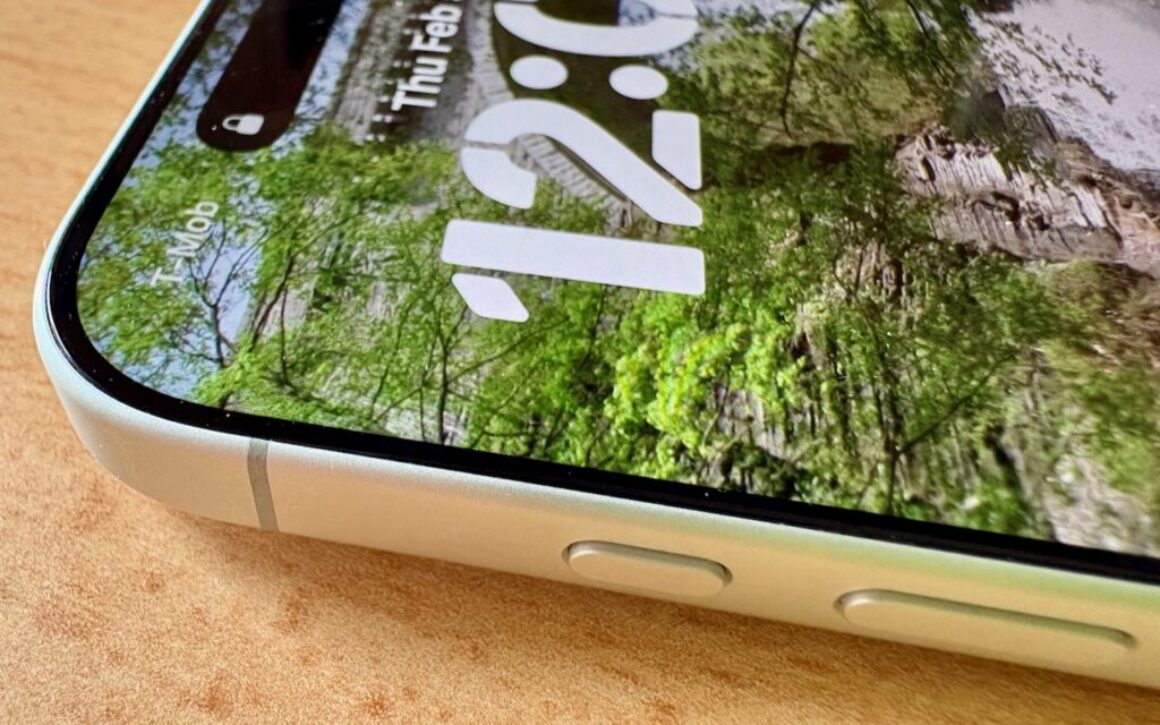
Starting with the iPhone 15 Pro and Pro Max, Apple replaced the Ring/Silent switch on the top-left edge of the iPhone with the Action button, making the new button standard across the iPhone 16 and iPhone 17 lineups in subsequent years. The Action button is a dedicated hardware button you can configure to perform one of many different tasks. Although Apple prompts everyone setting up a new iPhone to configure the Action button, our experience is that many people haven’t integrated it into their everyday usage.
Taking advantage of the Action button isn’t hard, but there are obstacles. The Ring/Silent switch had only one function, whereas the Action button offers so many options that it’s easy to fall prey to decision paralysis. Also, because the Action button is configurable, it behaves differently even if you leave it set to Silent Mode. The Ring/Silent switch was a physical switch that also showed its state with an orange indicator. With the Action button, you can’t tell at a glance if Silent Mode is on, and activating it requires a relatively long press-and-hold. Finally, the Action button’s ultimate power lies in its Controls and Shortcuts options, but many users are unaware of the wide-ranging possibilities these unlock.
So let’s look at how to make the most of the Action button. To configure the Action button, go to Settings > Action Button and swipe through the choices. The choice on screen when you exit Settings will be active. Although there are no bad choices here, many of the options Apple provides can be activated just as easily through Control Center or Siri, so you might not want to dedicate the Action button to them.
Silent Mode: Toggle call and alert sounds on and off. This is the default setting, but unless you regularly need to toggle the ringer, it’s not worth dedicating the Action button to such a seldom-used option. You can toggle Silent Mode in Control Center just as easily.
Focus: Activate or switch Focus modes such as Do Not Disturb. We recommend using Focus sparingly because it can block desired notifications, but if you’re a fan, the Action button might be a good way to switch between them. Focus modes are also easy to select in Control Center and turn on with “Siri, turn on Do Not Disturb.”
Camera: Launch the Camera app. If your iPhone has the Camera Control (as do all Action button-equipped models except the iPhone 15 Pro/Pro Max and iPhone 16e), the Camera Control is the best way to open the Camera, but the Action button might still be helpful for opening the Camera app to a specific mode: Photo, Selfie, Video, Portrait, or Portrait Selfie.
Visual Intelligence: Launch Apple’s AI-powered object recognition feature. Again, pressing and holding the Camera Control (if available) is a better way to access Visual Intelligence.
Flashlight: Turn the flashlight on or off. This may be a good choice if you use the flashlight regularly, but if so, you’re probably already accustomed to tapping its icon on the iPhone’s Lock Screen. If your hands are too full, try “Siri, turn on the flashlight.”
Voice Memo: Start recording audio in the Voice Memos app. If you use Voice Memos heavily, you may like this use of the Action button. Alternatively, just say, “Siri, record a voice memo.”
Recognize Music: Use Shazam to identify music that’s playing nearby or on your iPhone. Another way to invoke Shazam quickly is to ask, “Siri, what’s playing?”
Translate: Starts listening to translate between the default languages you set up in the Translate app. This use of the Action button is a great shortcut if you’re traveling in another country and need quick translations, but most people don’t need it every day.
Magnifier: Launch the Magnifier app to make it easier to see tiny text and small objects. Those with low vision may particularly appreciate this use of the Action button, but the Magnifier app is also easily accessed from a Control Center button or by saying, “Siri, open Magnifier.”
Controls: Invoke any Control Center control. Here’s where things get interesting! Starting with iOS 18, iPhone apps can create controls in Control Center. With the Controls option, you can choose any available control, so you could have the Action button start a ChatGPT conversation, add a task to TickTick, create a new event in BusyCal, or myriad other options. We strongly encourage you to scroll through the available controls to see if any catch your interest.
Shortcut: Activate any custom Shortcut for personalized actions. The previous Controls choice is brilliant, but what if you want even more options? With Shortcuts, you can create custom actions that can even leverage multiple apps to do exactly what you want. For instance, you could create a shortcut that takes a photo of an expense receipt and sends it to a specific email address, all triggered by a long press on the Action button. The sky is the limit here.
Accessibility: Quick access to accessibility features like VoiceOver, Zoom, Speak Screen, Apple Watch Mirroring, Live Captions, Conversation Boost, and more. Don’t assume these options are only for people with disabilities; many have broader utility.
No Action: The final option is No Action, which is useful only if you accidentally press the Action button frequently and don’t want it to do anything.
So there you have it! If you’re not currently using the Action button, take a spin through the available options to see which can make a difference in your everyday iPhone experience.
(Featured image by Adam Engst)
Social Media: Your iPhone’s Action button can do much more than toggle Silent Mode. Try it for quick translations or voice memos—or explore the many options in Controls and Shortcuts to trigger nearly any action with a long press.
Column view in the Finder has an annoying tendency to either show overly wide columns that waste space or truncate long filenames, forcing you to drag a column divider to see more of the name. In macOS 26.1 Tahoe, Apple added an option to the Finder’s View Options window that automatically adjusts column widths to display the longest visible filename in each column. To activate it, choose View > Show View Options with a column-view window frontmost, then select the “Resize columns to fit filenames” checkbox. If you’re running macOS 13 Ventura through macOS 15 Sequoia, this option is hidden, but you can enable it by pasting this command into Terminal: defaults write com.apple.finder _FXEnableColumnAutoSizing -bool YES; killall Finder. (Change YES to NO to revert the change.) Alternatively, the free TinkerTool 10 utility provides a graphical toggle for these older operating systems—look for “Automatically adapt to file name widths in column mode” in the Finder section.
(Featured image by iStock.com/IPGGutenbergUKLtd)
Social Media: Tired of truncated filenames in the Finder’s Column view? macOS 26.1 Tahoe adds a simple checkbox to auto-resize columns—and you can enable the same feature in earlier macOS versions with a quick Terminal command or free utility.





 button in the upper-right corner, tap Manage Filtering, and turn on Screen Unknown Senders and Filter Spam. Once those are enabled, the Filter menu gains two new options: Unknown Senders and Spam. If a text from an unknown person comes in, the main app icon will get a red badge, but you won’t see the new message in the usual list. Instead, use the Filter menu—which also gets a blue badge—to switch to Unknown Senders or Spam and look in those lists. The Phone app works similarly—enable call filtering in Settings > Apps > Phone under Call Filtering, and unknown callers will appear in separate lists accessible via the Filter button in the Phone app’s Recents or Calls views. To move a conversation out of Unknown Senders, tap Mark as Known.